Update
Released v75 which adds clipboard history, timers, process search and unit conversion
Disclaimer: To be clear, I did not write a single line of code,. If you find any bugs or similar, I can try to solve those using claude.ai. I also have no idea if it has any security issues, but I ran several check using several LLMs.
This is mainly a tool for my personal use, but if someone finds it useful, feel free to use and share it.
Hi everyone,
I am back vibe coding again. It’s very fun, I must say, if I didn’t keep hitting the limit so quickly. Anyway.
Today I want to share a launcher with you which was created by Claude.ai for GNOME 3. I wanted something similar to krunner in KDE Plasma, and everything I found wasn’t exactly the way I wanted it. So Claude.ai came to the rescue. Again.
A few basic features I wanted are URL shortcuts, a calculator, fuzzy file search, window selection and, of course, an application launcher.
This is what came out after around 40 70 iterations.
I will add a short video to showcase it a little better.
The Application
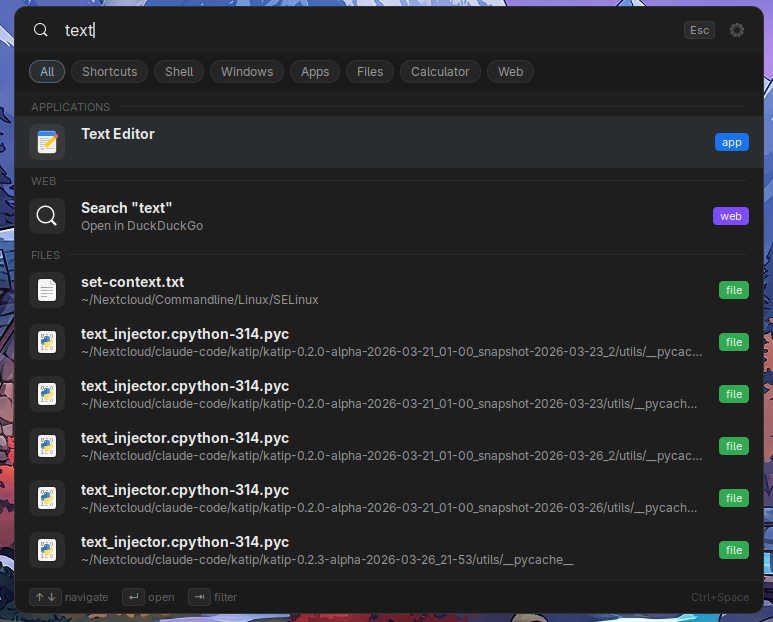
As you can see, the fuzzy search works. We have categories, line separations and so on. Some of which can be customized directly in the settings menu.
Here are a few of the features.
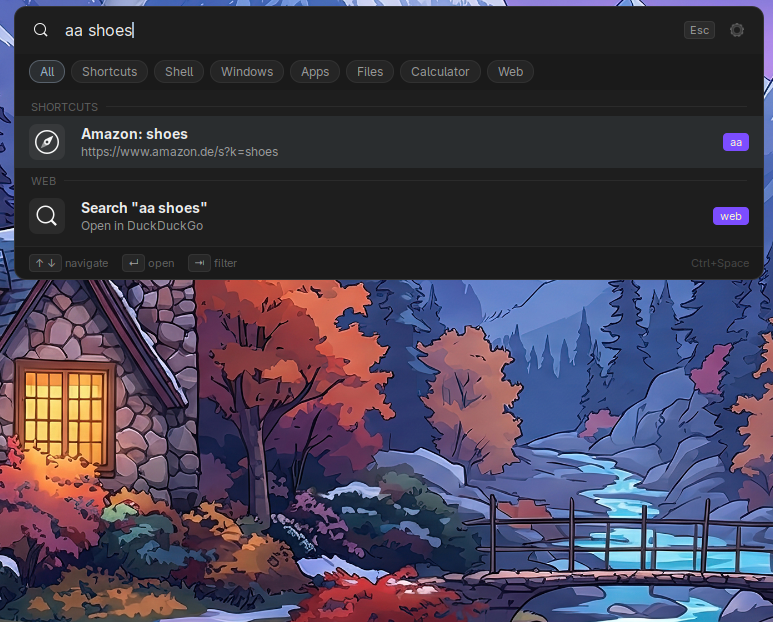
URL shortcuts. This is for a Amazon search, but there are several more per default. You can add your own.
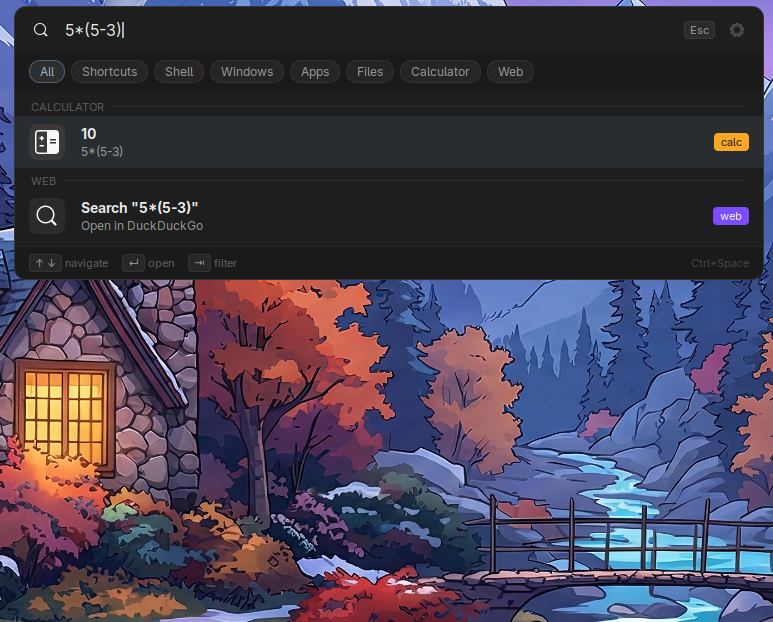
A calculator
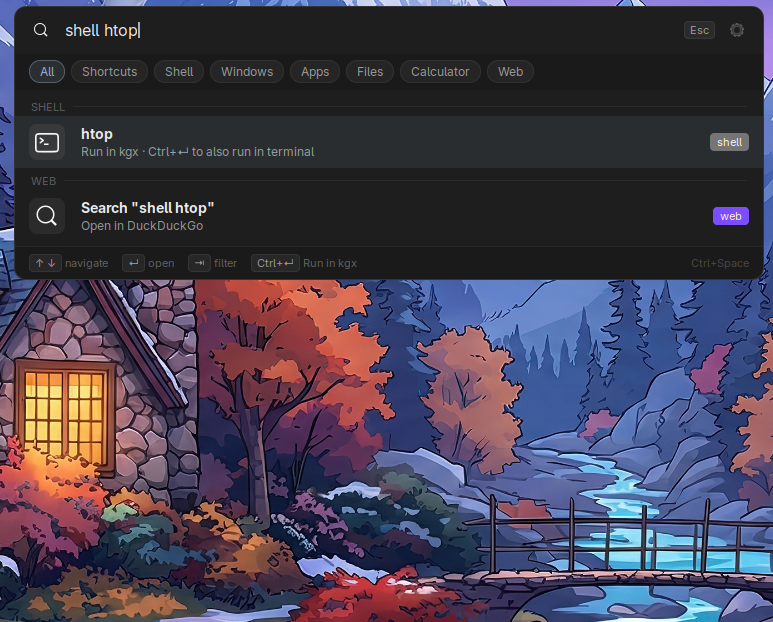
Shell execution. We can either just run it once, or open a terminal and execute with Ctrl+Enter
These are just a few of the things that work very nicely.
Screencast
Feature showcase
This shows some of the features. Calculator, clipboard, application search, shell execution and file search.
Here some more stuff. Timer, windows search, web search and web shortcuts.
And last but not least, just a fun addition. A handwriting canvas, in the style of Apples IPad.
IMPORTANT: The application offers three options for handwriting recognition:
Tesseract (Default): Open-source and local, though accuracy may vary.
MyScript: Highly accurate, but requires a personal API key (a free tier is available).
Google API (Unofficial): This sends your stroke data to Google’s Handwriting API for processing. Please use this only if you are comfortable with that data exchange.
Note on Privacy: I will be releasing two versions of the app—one standard version and one “Privacy Edition” that completely removes the Google API integration.
Installation Guide
Automated
On how to install this. It’s very easy. Once you unzip the file, you will find an “install.sh” script. Open a terminal in that folder and execute “bash install.sh” to compile and install the extension.
Log out and back in, then enable either using the GNOME Extension gui or this command.
fedora :: ~ » gnome-extensions enable katip-launcher@local
Manually
If you don’t want to use the install script, do the following.
Unzip the file and copy the katip-launcher@local folder to your extensions folder.
fedora :: ~ » unzip katip-launcher-v72.zip && cp -r katip-launcher@local ~/.local/share/gnome-shell/extensions/
Then compile the schema.
fedora :: ~ » glib-compile-schemas ~/.local/share/gnome-shell/extensions/katip-launcher@local/schemas/
Log out and back in and enable the extension.
fedora :: ~ » gnome-extensions enable katip-launcher@local
That’s it.
Here a complete feature list. This list is also generated by claude.ai. So some useless information possibly.
Katip Launcher — Feature List
Katip is a keyboard-driven launcher for GNOME Shell. Press Ctrl+Space to open it, type what you’re looking for, and press Enter. That’s it.
Search everything at once
The moment you start typing, Katip searches across all categories simultaneously — open windows, installed apps, files on your computer, and more. Results are ranked by how often you use them, so things you open frequently appear at the top automatically.
Open windows
See all your currently open windows. Click or press Enter to switch to any of them instantly. Filter to only windows by typing window or win followed by a space and a title.
Application launcher
Search all installed applications by name, description or keyword. Launch with Enter.
File search
Searches files in your home folder using GNOME’s built-in file indexer. You can add extra search paths in settings — including network shares and external drives. Type file or files followed by a space to search files only.
Calculator
Type any math expression directly in the launcher — no prefix or trigger needed. Results appear instantly and pressing Enter copies the answer to your clipboard.
Examples: 5 * 1.19 · sqrt(144) · (100 + 50) / 3 · sin(pi/2)
Unit conversion
Type a conversion in plain language. Pressing Enter copies the result to clipboard.
Examples: 100 km to miles · 32 F to C · 1.5 kg to lbs · 1 GB to MB · 100 bar to psi
Supported units: length, mass, temperature, speed, volume, storage and pressure.
Web search
Every search automatically includes a web search result at the bottom. Press Enter to open the results page in your browser. The search engine is configurable — DuckDuckGo by default.
Type a domain name like github.com to open it directly without going through a search engine.
Custom shortcuts
Create your own quick-launch keywords in settings. Type a trigger word followed by your search term to jump straight to a website or service.
18 shortcuts are included by default: Google (gg), GitHub (gh), Wikipedia (ww), YouTube (yt), Stack Overflow (so), MDN (mdn), DuckDuckGo (dd), Amazon (aa), Google Calendar (cal), and more. You can add, edit or remove shortcuts at any time.
Shell commands
Type shell followed by a space and any command to run it:
shell htop— opens htop in your terminalshell firefox— launches Firefox silently without a terminal windowshell ls ~/Documents— runs a command in your terminal
Enter — run the command, terminal closes when finished. Ctrl+Enter — run and keep the terminal window open so you can read the output.
GNOME Settings
Type settings followed by a panel name to jump directly to any section of GNOME Settings.
Examples: settings wifi · settings display · settings bluetooth · settings keyboard · settings users
Timers
Set a desktop notification timer without leaving the keyboard.
Examples: timer 25m · timer 1h30m standup · timer 90s · timer 2h deep work
A bare number assumes minutes: timer 25 = 25 minutes. The notification fires when time is up.
Clipboard history (optional)
Disabled by default — enable in Settings → Providers.
Katip watches your clipboard in the background and builds a searchable history of everything you copy. Type clip or clipboard to filter clipboard entries. Press Enter to copy an entry back to the clipboard.
Private mode — press Ctrl+Enter on any entry to mark it as private. The text is hidden behind bullet points (••••••••) so passwords and sensitive content are never shown on screen. The entry still works normally — you can find it, copy it, and un-hide it at any time by pressing Ctrl+Enter again.
Delete — press the Delete key to permanently remove an entry from history.
History size is configurable (default 50 entries). The clipboard is checked every 3 seconds in the background.
Process search (optional)
Disabled by default — enable in Settings → Providers.
Type proc followed by a process name to list matching running processes. Press Enter to stop a process, or Ctrl+Enter to open a terminal with details.
Category filters
Narrow results to a single category by clicking a chip at the top of the launcher, or type a keyword inline:
file, files → files only window, windows, win → open windows only app, apps → applications only calc, calculator → calculator only clip, clipboard → clipboard history only (when enabled) /web, /search → web search only
Result ordering
Custom category order — drag categories up and down in Settings → Providers → Display order to control which category appears first when the launcher opens.
Most recently used first — an optional toggle in the same section. When enabled, the launcher sorts everything by your personal usage history when the search box is empty — whatever you used most recently appears at the top, regardless of category. As soon as you start typing, normal search scoring takes over.
Smart result ranking
Results are sorted by a combination of fuzzy match score and your personal launch history. Items you open often rise to the top. The history adapts over time — older entries gradually fade so recent habits are always reflected.
Keyboard navigation
| Key | Action |
|---|---|
↑ / ↓ | Navigate results |
Enter | Open or launch |
Ctrl+Enter | Alternative action (open folder, keep terminal open, toggle clipboard private) |
Delete | Remove selected clipboard entry |
Tab | Cycle category filter chips |
Escape or Super | Close launcher |
Themes
Six built-in color themes: System (follows your GNOME accent color and dark/light mode), Dark, Muted, Light, Soft and Pastel. The System theme updates live when you change your GNOME appearance settings.
Create your own themes in Settings → Custom Themes.
Configurable everything
Change the keyboard shortcut to anything you prefer
Adjust launcher width and number of visible results
Set your preferred terminal emulator and web search engine
Add file search paths for network shares or external drives
Toggle individual search categories on or off
Reorder categories to match your workflow
Turn off the dark overlay or the top-bar icon
Change or remove the inline filter prefix character
Katip Launcher is open source, released under the MIT License. Developed with Claude (Anthropic).
Downloads
Katip Launcher
Github
Source code and issue tracker: github.com/greybent/katip-launcher
Kommentare