(Update) Deletable Attachments
It seems like attachments are still deletable and I didn’t find a way to prevent this. Doesn’t seem to be possible. Well, it still works in case you want to prevent the user from removing emails.
Hey there,
I want to go through the steps, to set up read-only access to a shared mailbox (or any mailbox) in Exchange. In this case Exchange Online, but it should work with the on-prem Exchange as well. I want the user to be able to read and mark emails “as read”, but not delete them.
From what I could gather, this isn’t really intuitive and requires the Powershell.
Let’s start.
Setting the permissions
First, connect to your Exchange or Exchange Online.
For the on-prem Exchange just use “Exchange Management Shell”. In the case of Exchange Online, you will need to connect to Office365 first.
PS /home/user> $UserCredential = Get-Credential
## Enter you Credentials
PowerShell credential request
Enter your credentials.
User: username@random-it-blog.de
Password for user user@random-it-blog.de: *******

## Connect to Exchange Online
PS /home/user> $Session = New-PSSession -ConfigurationName Microsoft.Exchange -ConnectionUri https://outlook.office365.com/powershell-liveid/ -Credential $UserCredential -Authentication Basic -AllowRedirection

## Import the required Modules
PS /home/user> Import-PSSession $Session -DisableNameChecking
Or you could use this method. It’s easier.
“Connect-ExchangeOnline” will open the browser, where you can login with your credentials.
If you want to open a browser manually use the “-device” option. This is useful if you use something like the “Firefox Multi-Account Container” Extension.
## Install the Module
PS /home/user> Install-Module -Name ExchangeOnlineManagement

## Connect to Exchange Online
PS /home/user> Connect-ExchangeOnline

## Connect to Exchange Online with "-device"
PS /home/user> Connect-ExchangeOnline -device
To sign in, use a web browser to open the page https://microsoft.com/devicelogin and enter the code CFE2D8TUZ to authenticate
Next, we give the user read permission to the shared mailbox. For this example, I will use “mail@random-it-blog.de” for the shared mailbox and “user@random-it-blog.de” as the user mailbox.
PS /home/user> Add-MailboxPermission -Identity mail@random-it-blog.de -user user@random-it-blog.de -AccessRights ReadPermission -InheritanceType all
Now you could add the mailbox in Outlook, but the user won’t be able to see any folders. For this, we need to set the folder permission as well.
## Add permission to the root folder
PS /home/user> Add-MailboxFolderPermission -Identity mail@random-it-blog.de:\ -User user@random-it-blog.de -AccessRights Reviewer

## Add permission to the "inbox" folder.
PS /home/user> Add-MailboxFolderPermission -Identity mail@random-it-blog.de:\Inbox -User mail@random-it-blog.de -AccessRights FolderVisible,ReadItems,EditAllItems
Repeat this process for every folder, you want to add the permission. The access rights combination of “FolderVisible,ReadItems,EditAllItems” should allow the user to read and mark emails, but not delete them.
Display information
Mailbox folders
To list the mailbox folders, you can use these commands.
This didn’t work for me on other mailboxes.
PS /home/user> Get-MailboxFolder -Identity mail@random-it-blog.de -Recurse

Name                          FolderPath                              HasSubfolders
---- ---------- -------------
Top of Information Store      {}                                      True
Archive                       {Archive}                               False
Calendar                      {Calendar}                              True
Birthdays                     {Calendar, Birthdays}                   False
or this one. It’s not pretty but works.
PS /home/user> Get-MailboxFolderStatistics -Identity mail@random-it-blog.de | fl FolderPath
Mailbox / Folder permissions
For the permissions on the mailbox, use this command.
## Mailbox permission
PS /home/user> Get-MailboxPermission -Identity mail@random-it-blog.de

Identity             User                 AccessRights                                                             IsInherited Deny
-------- ---- ------------ ----------- ----
mail NT AUTHORITY\SELF    {FullAccess, ReadPermission}                                             False       False
mail NT AUTHORITY\SELF    {FullAccess, ExternalAccount, ReadPermission}                            False       False
mail user@random-it-blog.de {ReadPermission}                                                         False       False
The permissions for the folders you can get with this.
PS /home/user> Get-MailboxFolderPermission -Identity mail@random-it-blog.de:\Inbox

FolderName           User                 AccessRights                                  SharingPermissionFlags
---------- ---- ------------ ----------------------
Inbox                Default              {None}
Inbox                Anonymous            {None}
Inbox                user       {ReadItems, EditOwnedItems, EditAllItems, Fo…
Outlook configuration
The last step is to add the mailbox to Outlook.
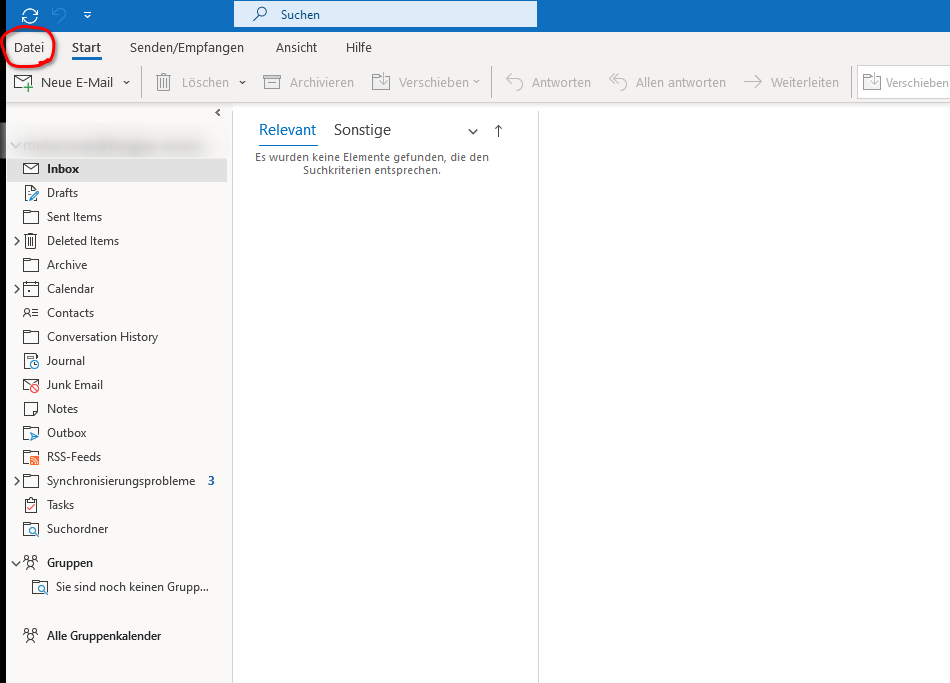
In Outlook click on “File”.
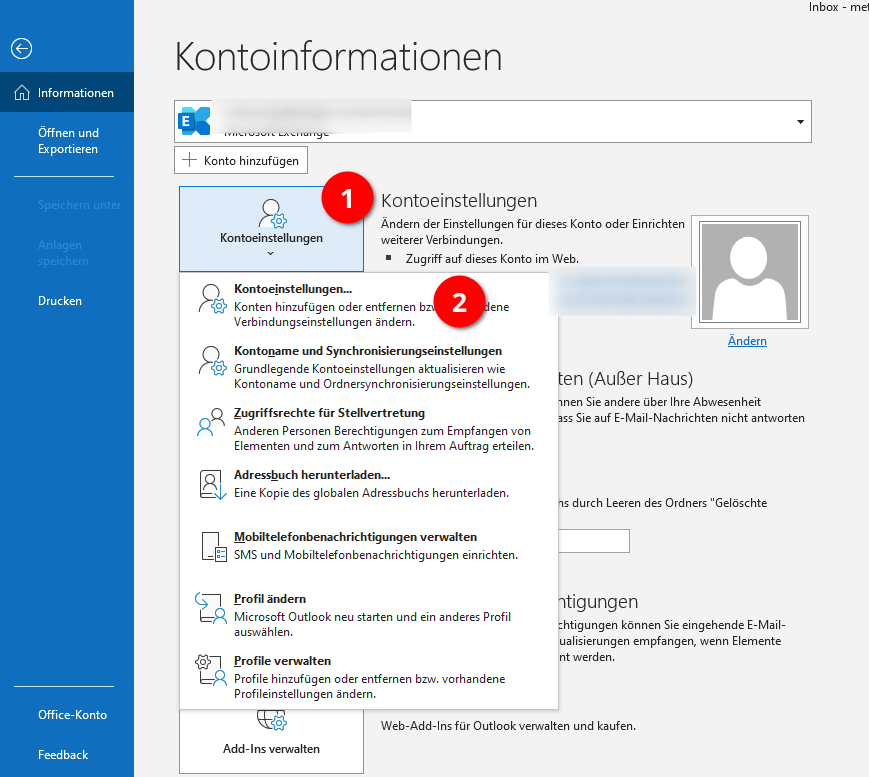
Info -> Account Settings -> Account Settings
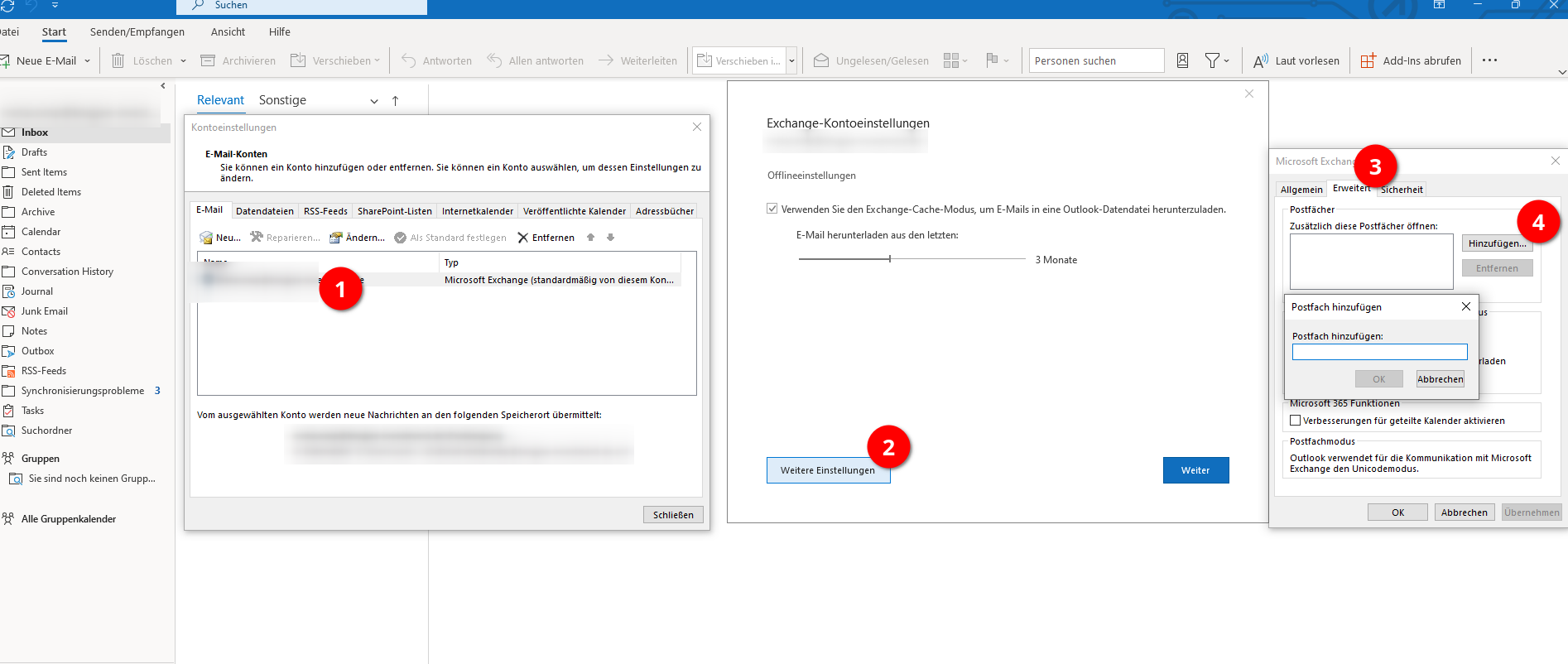
Double click on the E-Mail -> More Settings -> Advanced -> Add
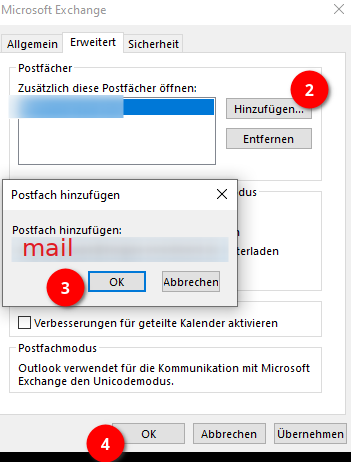
Enter the name of the mailbox. “Mail” in my case.
After this, the user should be able to access the new mailbox.
Adding shared mailbox to OWA
Because it came up. Here is how you can add the shared folder in OWA.
Right click on “folder” and “Add shared folder or mailbox”
Kommentare