Hi there,
Today, I want to create a domain trust between FreeIPA and Windows Active Directory. This will be, more or less, a continuation of the "Deploying a Linux/Windows Server Environment from Scratch" posts, though I’ll be using new deployments. I’ve already installed the operating systems and configured both FreeIPA and Windows AD. Other than that, I only created one user per domain so we can test the trust later. Here’s the data:
| Hostname / Domain | IP Address |
|---|---|
| ipa-01.ipa.example.com | 10.10.0.239 |
| ad-2022-01.ad.example.com | 10.10.0.240 |
| Windows User | Linux User |
|---|---|
| ad.user@ad.example.com | ipa.user@ipa.example.com |
I’ll be setting up a two-way trust, but keep in mind that, as of this writing, FreeIPA doesn’t fully implement this feature. This means Windows users can authenticate into Linux systems, but not the other way around.
Let’s begin.
Preparations (Windows)
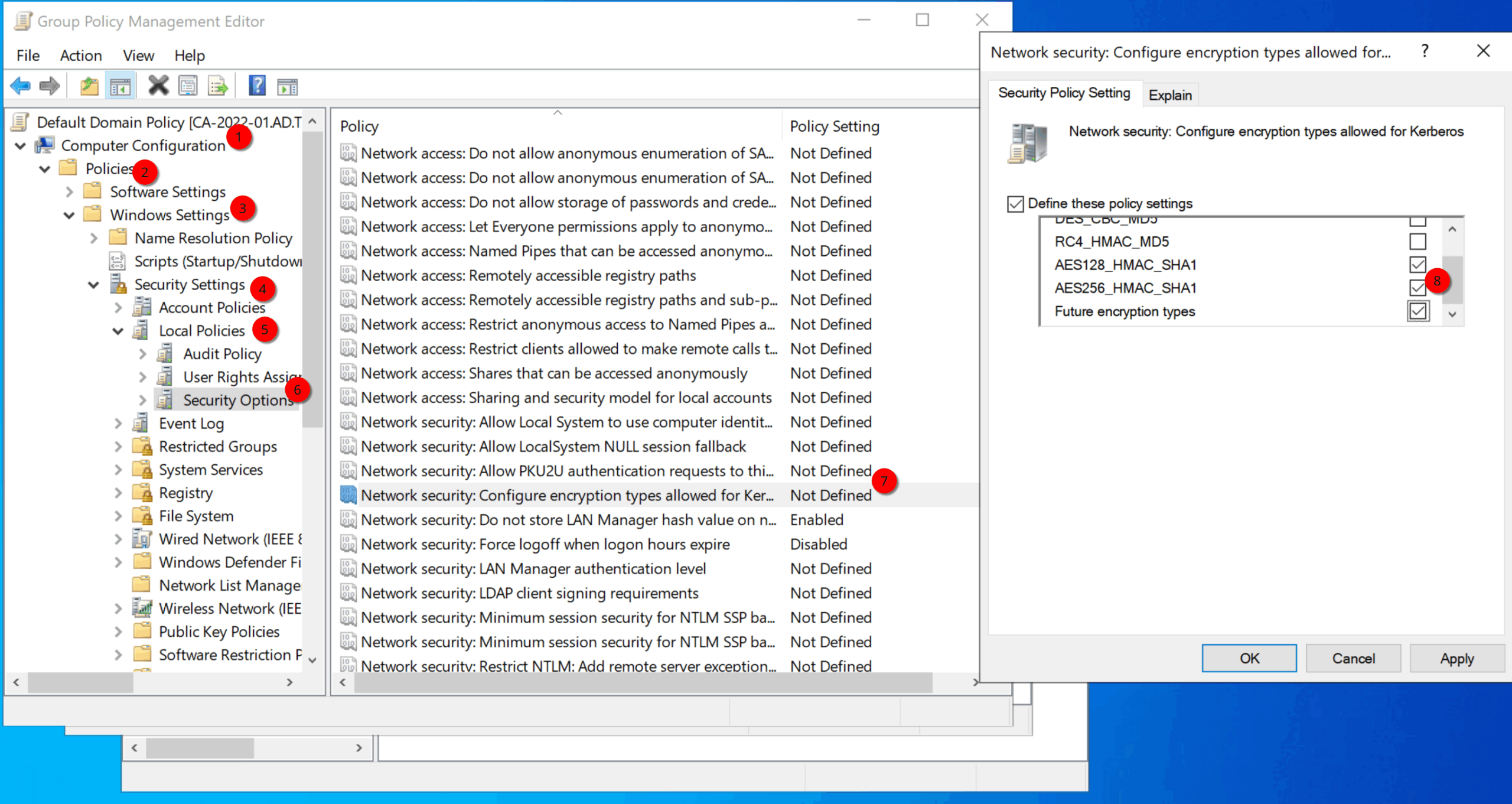
Setting up AES Encryption for Kerberos on AD (Optional)
This step is optional and shouldn’t be performed without first verifying that your that your Active Directory environment is configured to use AES-based Kerberos encryption types. Otherwise, you might experience an authentication outage. Since this is a new deployment in my case, that’s not an issue.
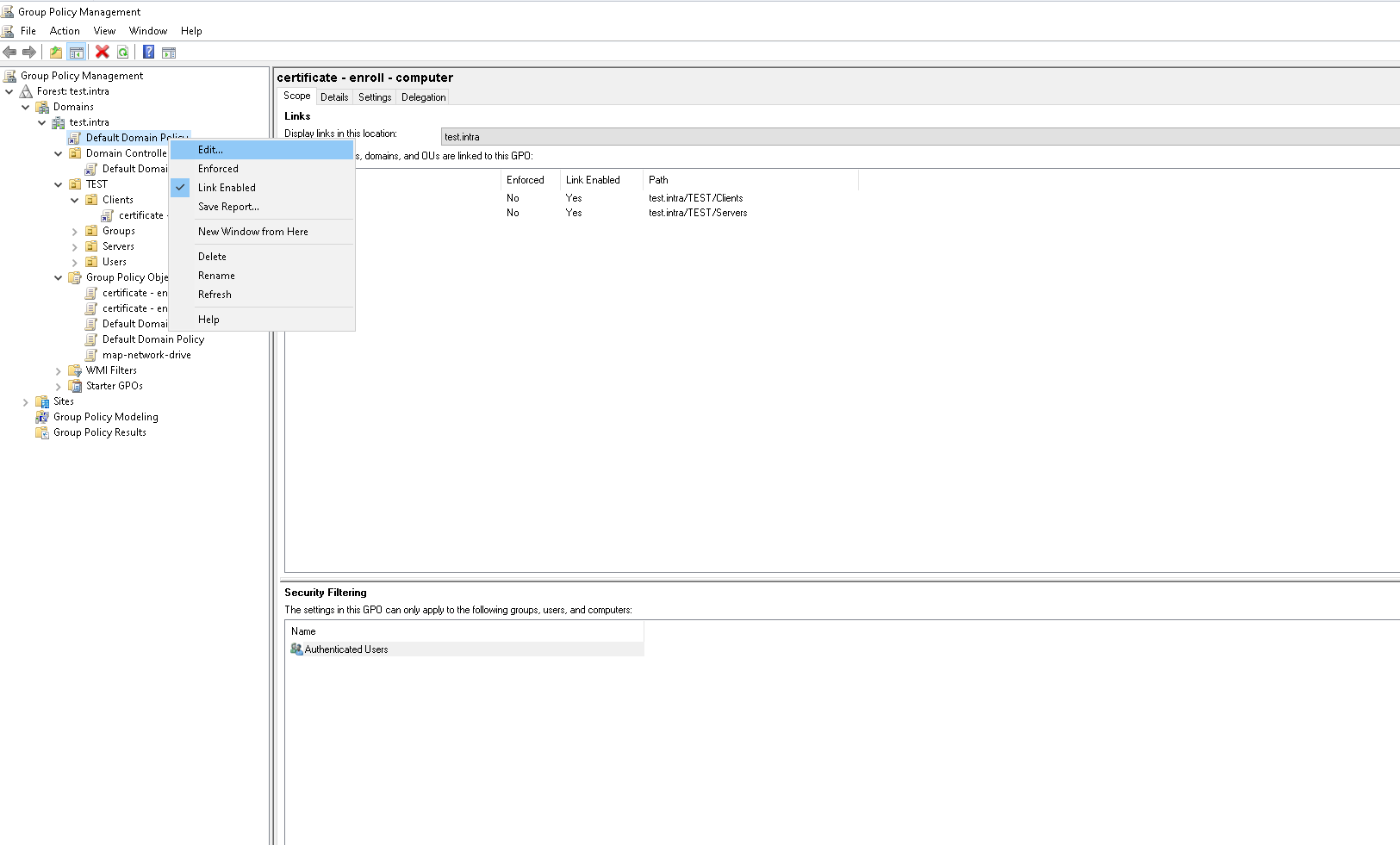
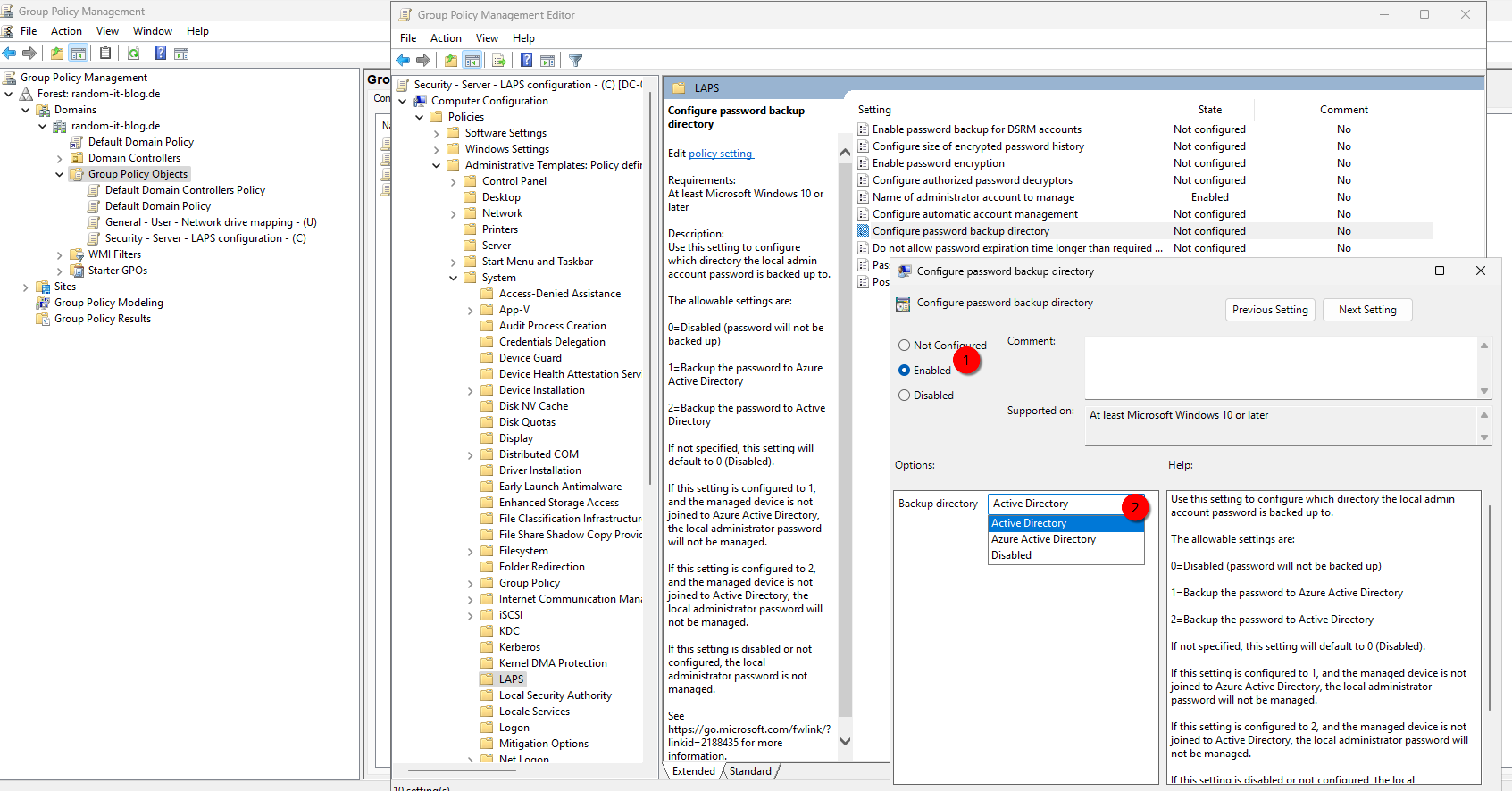
Set this for both, the “Default Domain Policy” and the “Default Domain Controller Policy”.
Preparations (Linux)
Enable AD Support on FreeIPA Server
Set the AD support on the FreeIPA server to allow “aes256-cts-hmac-sha1-96”.
ipa-01 :: ~ » update-crypto-policies --set DEFAULT:AD-SUPPORTSetting system policy to DEFAULT:AD-SUPPORTNote: System-wide crypto policies are applied on application start-up.It is recommended to restart the system for the change of policiesto fully take place.ipa-01 :: ~ » reboot
Disable DNSSEC and configure DNS forwarding
First, we must disable DNSSEC on the FreeIPA server. To do this, open the file "/etc/named/ipa-options-ext.conf".
# Open the fileipa-01 :: ~ » sudo vim /etc/named/ipa-options-ext.conf# add or change the following lines to the end.dnssec-enable no;dnssec-validation no;
Save the file and restart the ipa services.
ipa-01 :: ~ » sudo ipactl restart
Next, configure DNS forwarding for the AD domain.
# Get Kerberos Ticketipa-01 :: ~ » kinit admin# Set forwardingipa-01 :: ~ » ipa dnsforwardzone-add ad.example.com --forwarder=10.10.0.240 --forward-policy=only Zone name: ad.example.com. Active zone: True Zone forwarders: 10.10.0.240 Forward policy: only
Testing DNS
Now we can verify if the DNS resolving works. First, we check the IPA server records.
ipa-01 :: ~ » dig +short -t SRV _kerberos._udp.ipa.example.com.0 100 88 ipa-01.ipa.example.com.
Next, the Windows domain.
ipa-01 :: ~ » dig +short -t SRV _kerberos._tcp.dc._msdcs.ad.example.com.0 100 88 ca-2022-01.ad.example.com.
Install and execute “ipa-server-trust-ad”
Next, we need to install the ipa-server-trust-ad packages and execute it.
# Install the packagesipa-01 :: ~ » sudo dnf install ipa-server-trust-ad# Execute the commandipa-01 :: ~ » sudo ipa-adtrust-install# restart the IPA serveripa-01 :: ~ » sudo ipactl restart
Creating the Domain Trust (Linux)
The prerequisites are done, now we can create the trust.
ipa-01 :: ~ » ipa trust-add ad.example.com --trust-secretShared secret for the trust: <super-secret-password>-------------------------------------------------------Added Active Directory trust for realm "ad.example.com"------------------------------------------------------- Realm name: ad.example.com Domain NetBIOS name: AD Domain Security Identifier: S-1-5-21-4037355892-1042763114-2294158552 Trust direction: Trusting forest Trust type: Active Directory domain Trust status: Waiting for confirmation by remote side
Creating the Domain Trust (Windows)
Let’s continue on the Windows side.
Open the DNS Server Editor and add a new “conditional forwarder”.
Ignore the error for now
Next, open the “Active Directory Domain and Trusts”, right-click on the domain and select “Properties”.
Here, we select “Trust” and click on “new trust…”
Enter the peer domain “ipa.example.com” and click next.
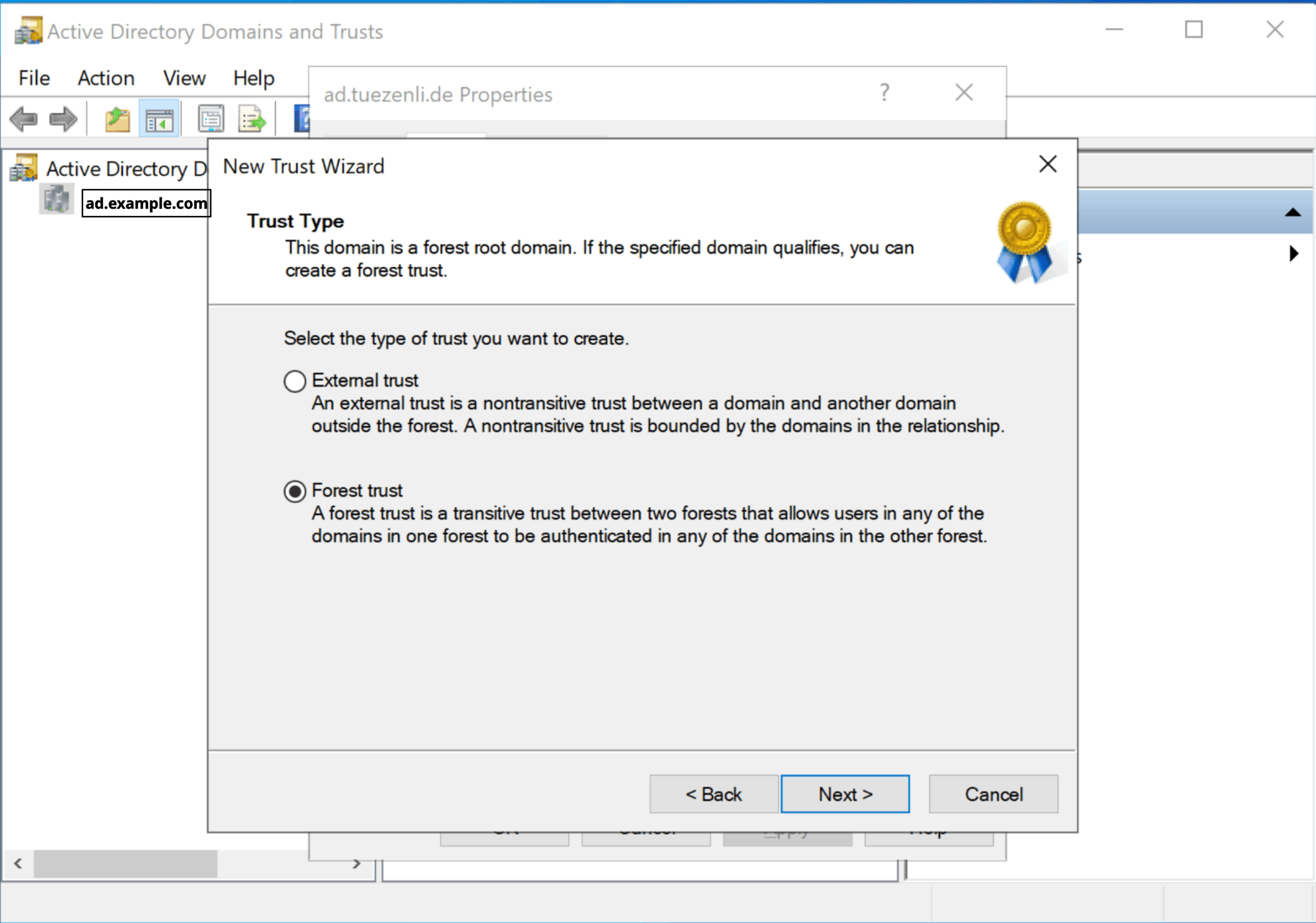
I will select “Forest trust” and “Two-way”.
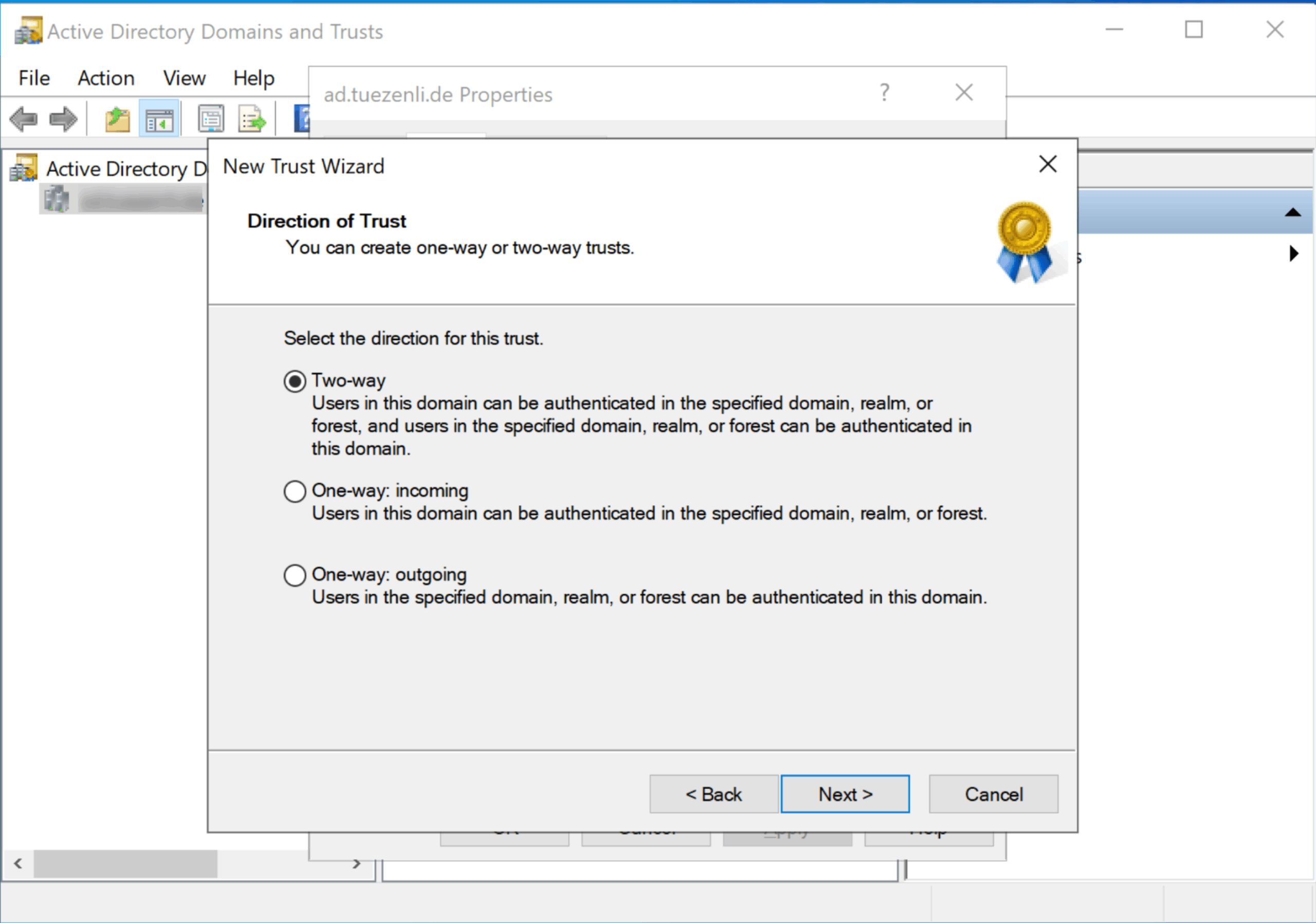
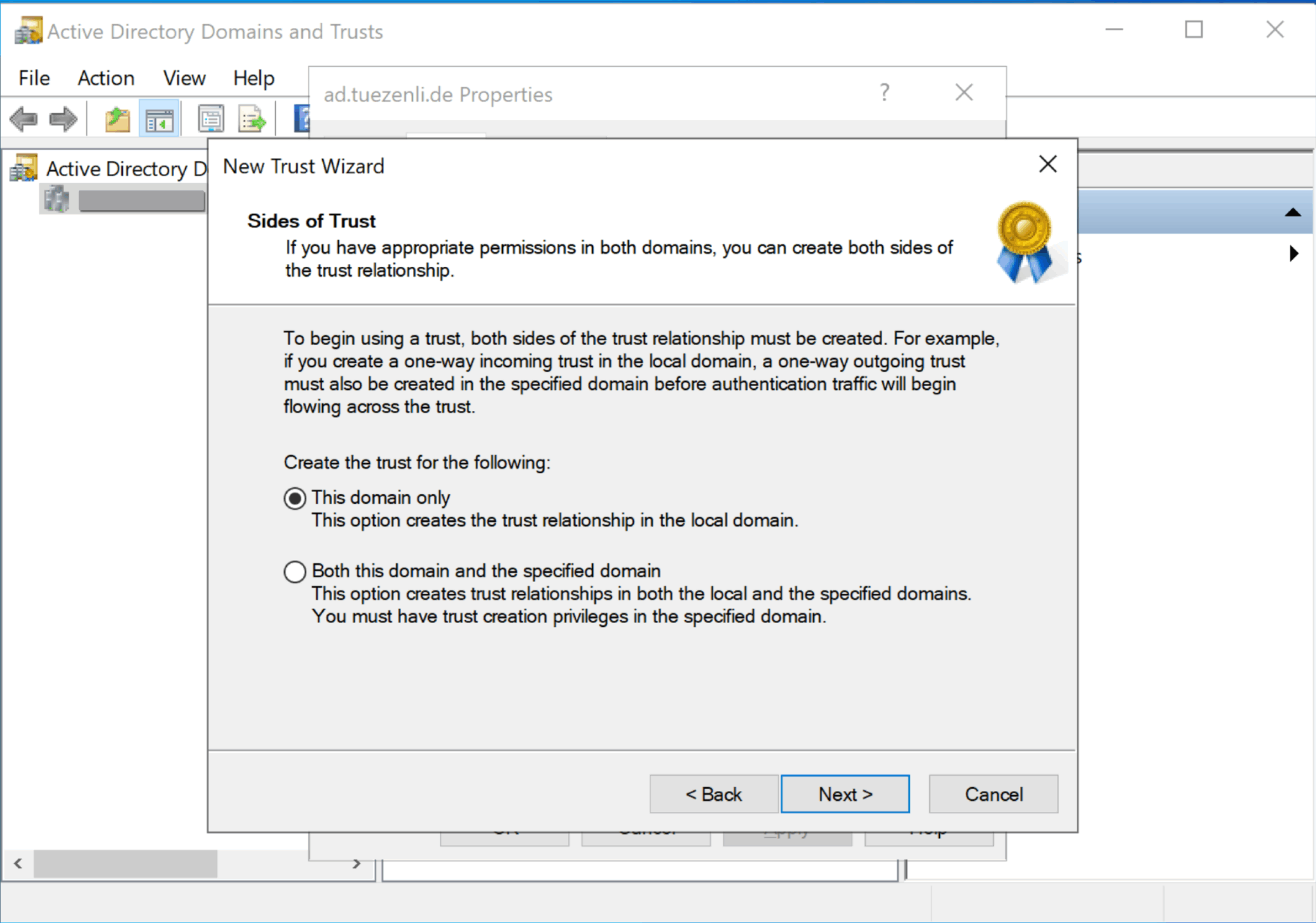
Select “this domain only”.
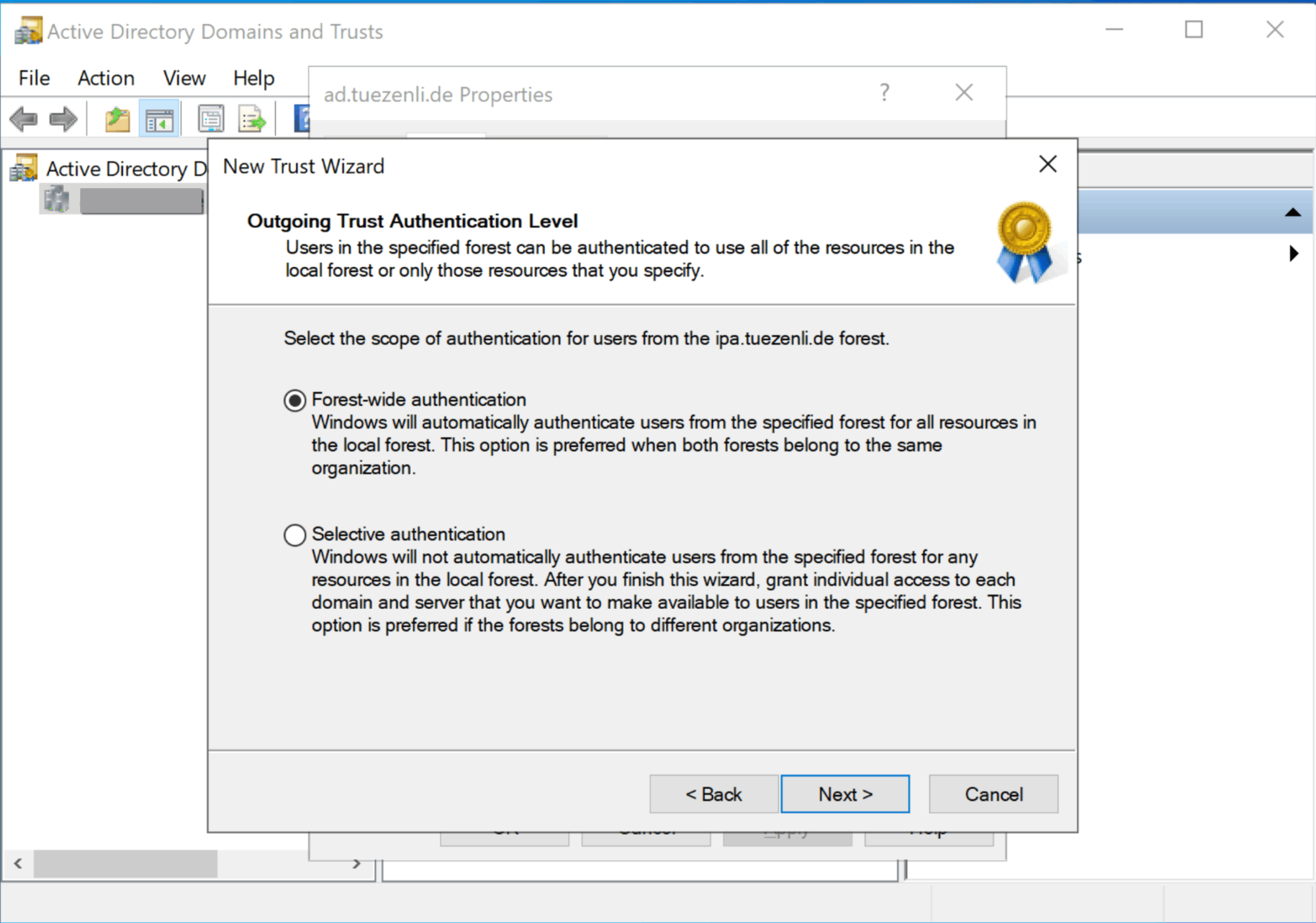
Here, I select “Forest-wide authentication”.
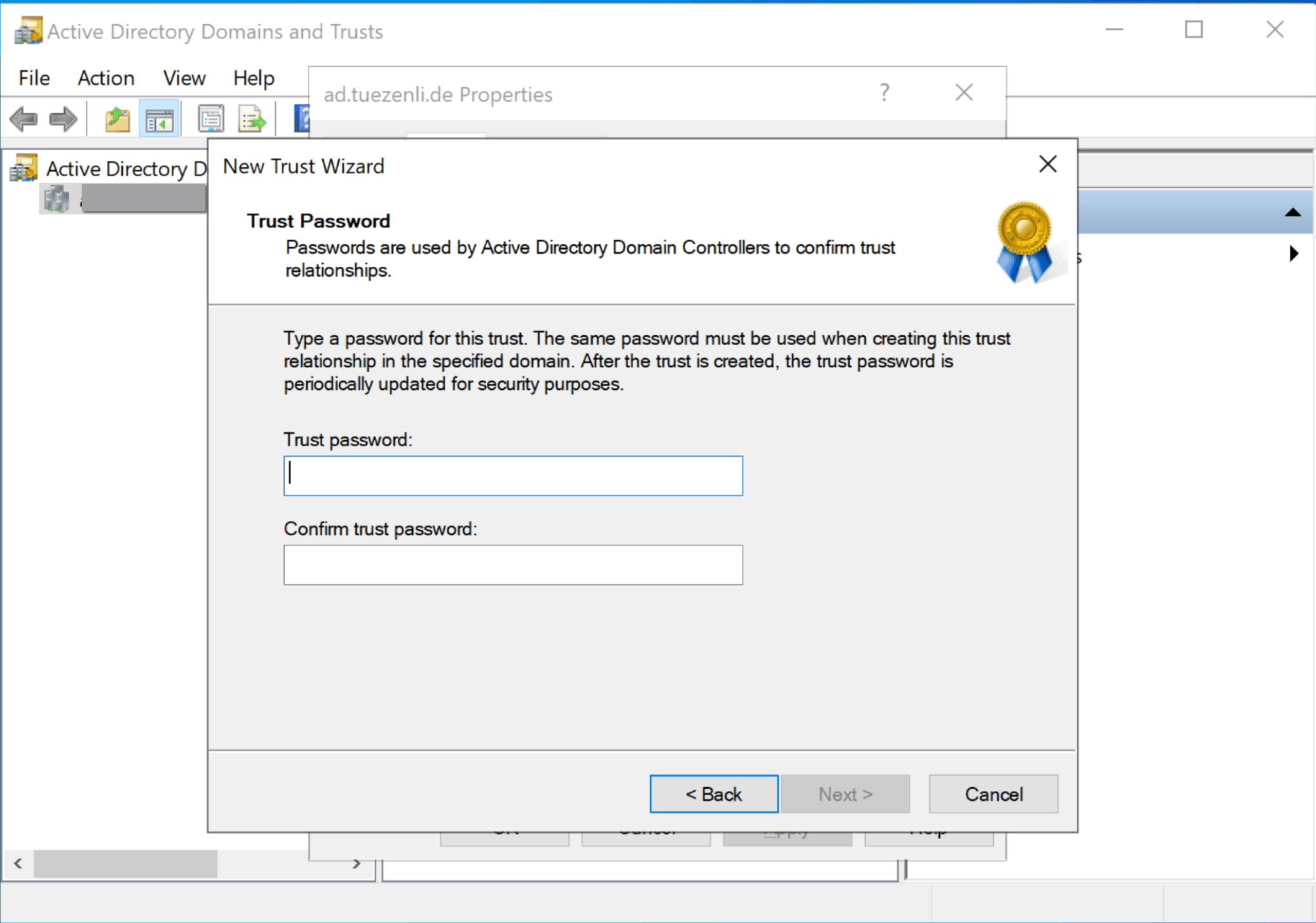
Next, we enter the same secret we used on the IPA server for the ad trust configuration.
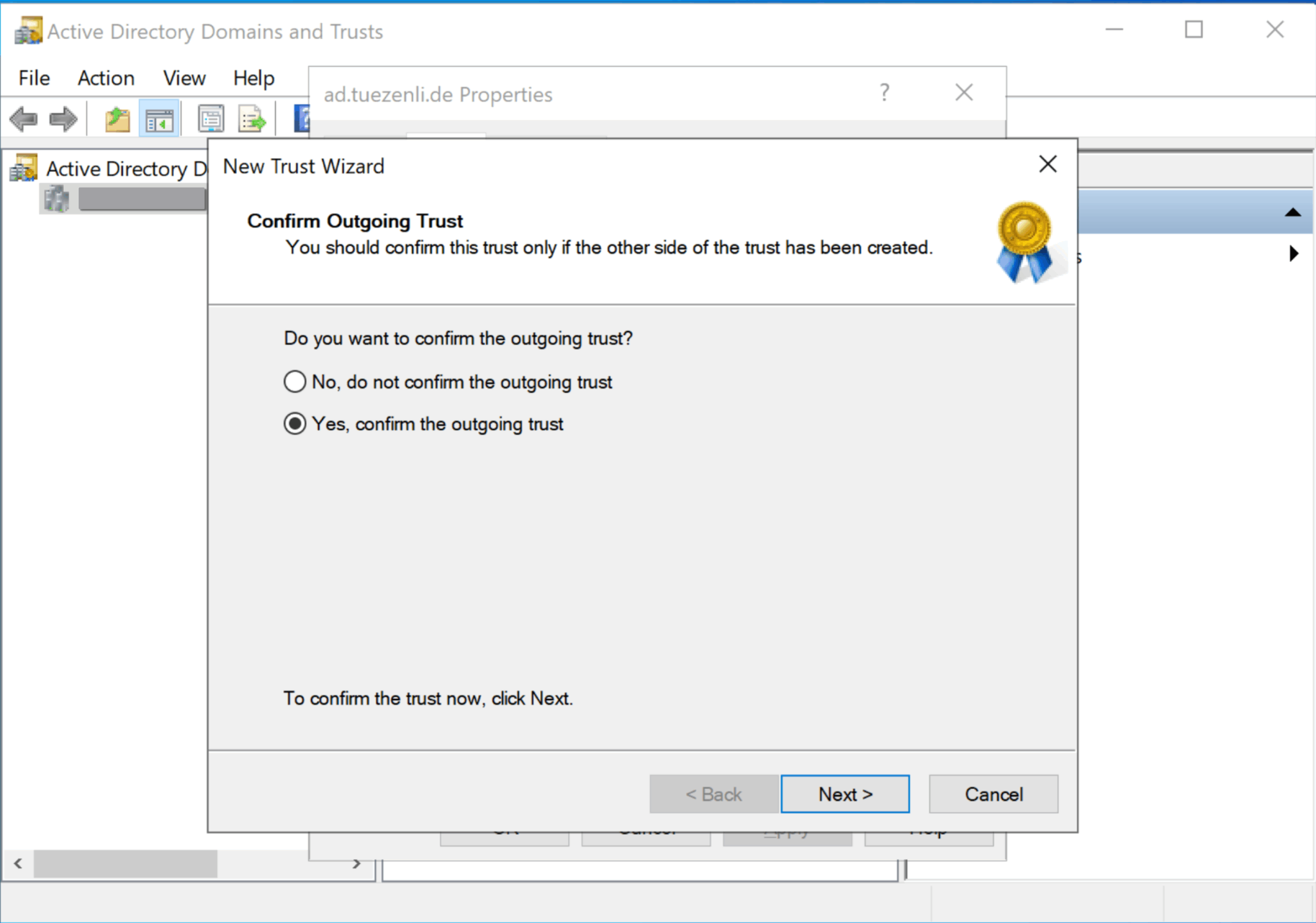
Select “Next” a few more times, until we reach the “trust confirmation”. I will select “Yes, confirm the outgoing trust”.
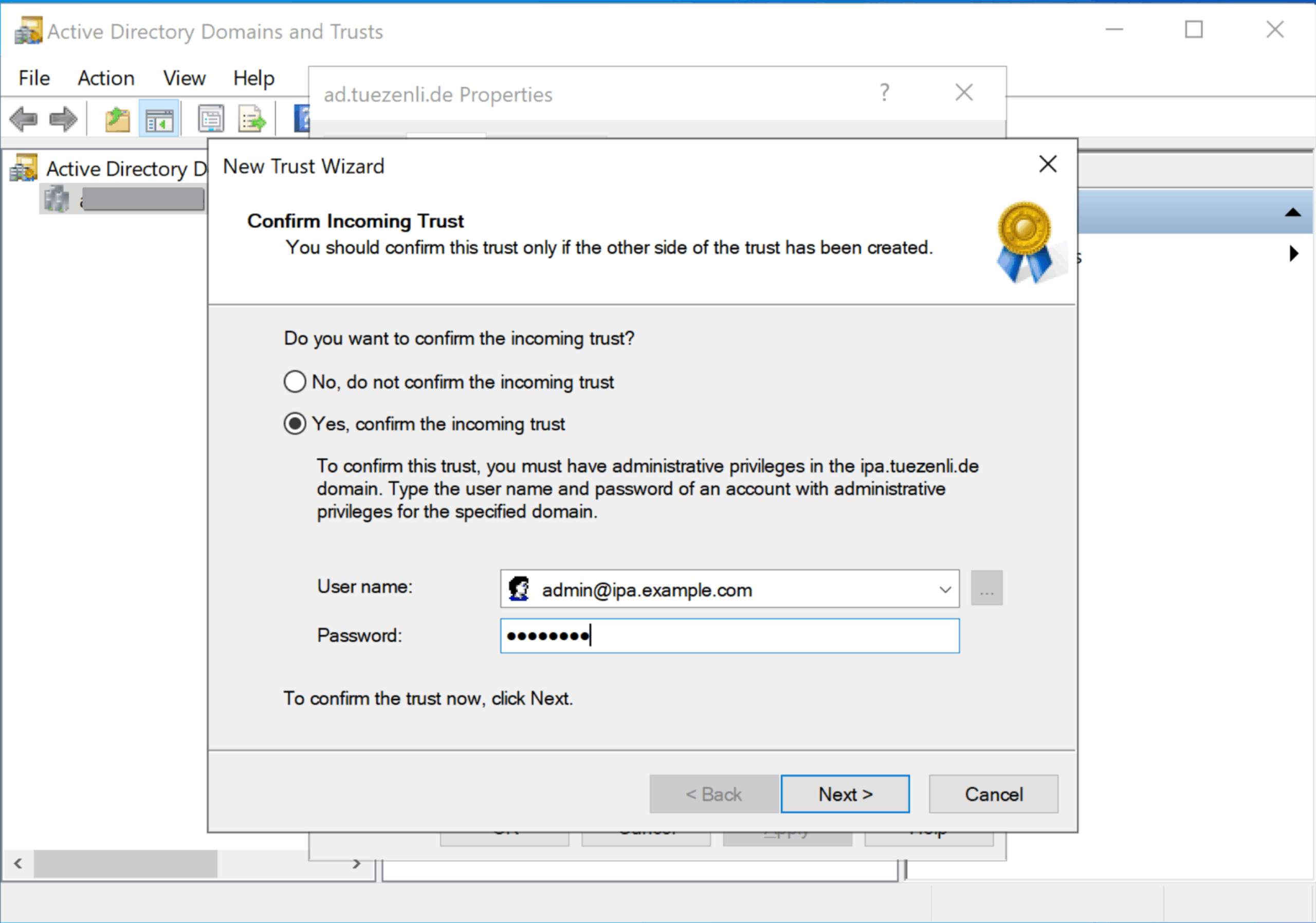
Enter the login information for an admin account.
Once that’s done, confirm. Now we should have two new entries in the “trust” section.
Testing the communication
Once that’s done, we can test the configuration.
On the IPA server, execute the following command to verify if we can get a Kerberos ticket for the AD user.
ipa-01 :: ~ » KRB5_TRACE=/dev/stdout kinit -V ad.user@AD.EXAMPLE.COMipa-01 :: ~ » id ad.user@ad.example.comuid=755801106(ad.user@ad.example.com) gid=755801106(ad.user@ad.example.com) groups=755801106(ad.user@ad.example.com),755800513(domain users@ad.example.com)
Great.
If you have questions, feel free to leave a comment.
Until next time.
Kommentare